

Order Routing Invoicing
Bill source stores for the orders routed into your store, on a schedule or order by order
Last updated October 5, 2026
Synkro can add every order routed into your store to an invoice for the store it came from. Invoices can be charged to a saved Stripe payment method, emailed, or marked as paid automatically when they close.
Quick Start
- Go to Settings > Order routing and open a routing setting.
- In the Invoicing section, click Invoicing settings.
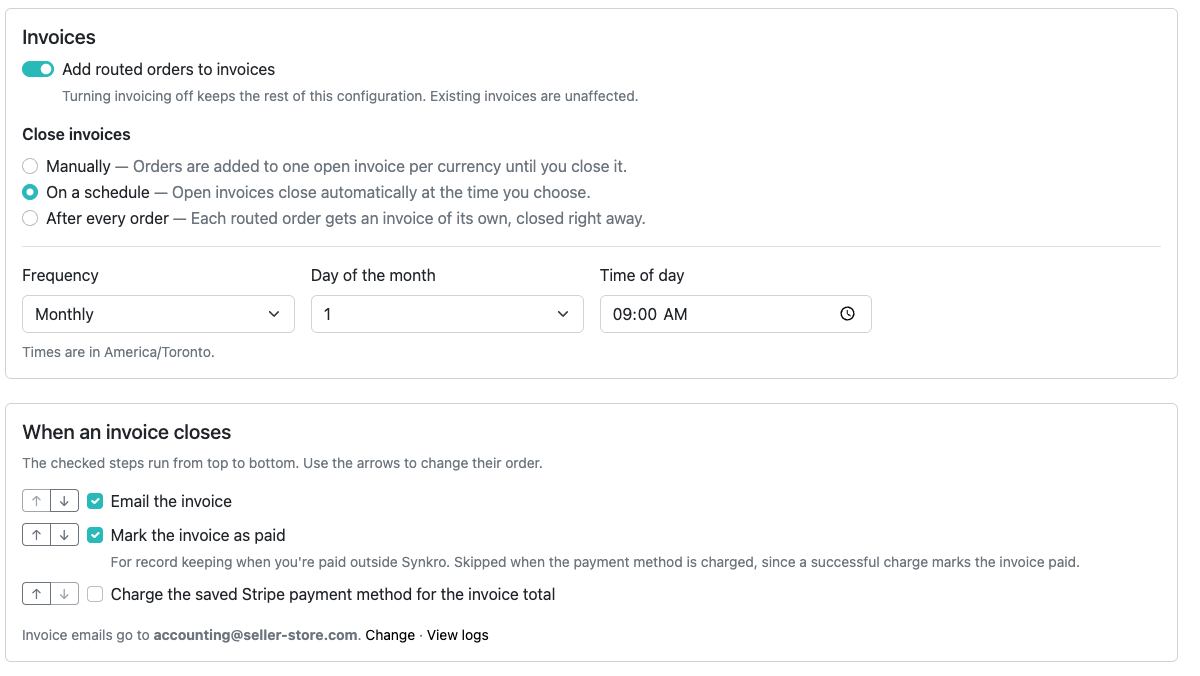
- Turn on Add routed orders to invoices.
- Choose when invoices close: Manually, On a schedule, or After every order.
- Under When an invoice closes, check the steps to run. They run from top to bottom; use the arrows to change the order.
- Optionally fill in the business details and note printed on invoices, then click Save invoicing settings.
🚀 From now on, each routed order is added to an invoice.
Invoices
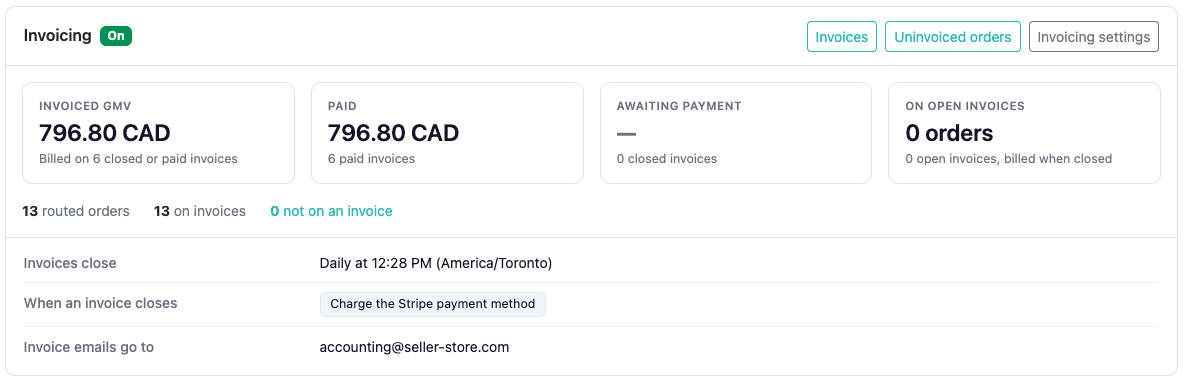
Each routing setting shows its invoices at a glance, with links to every invoice and to orders that aren’t on one yet.
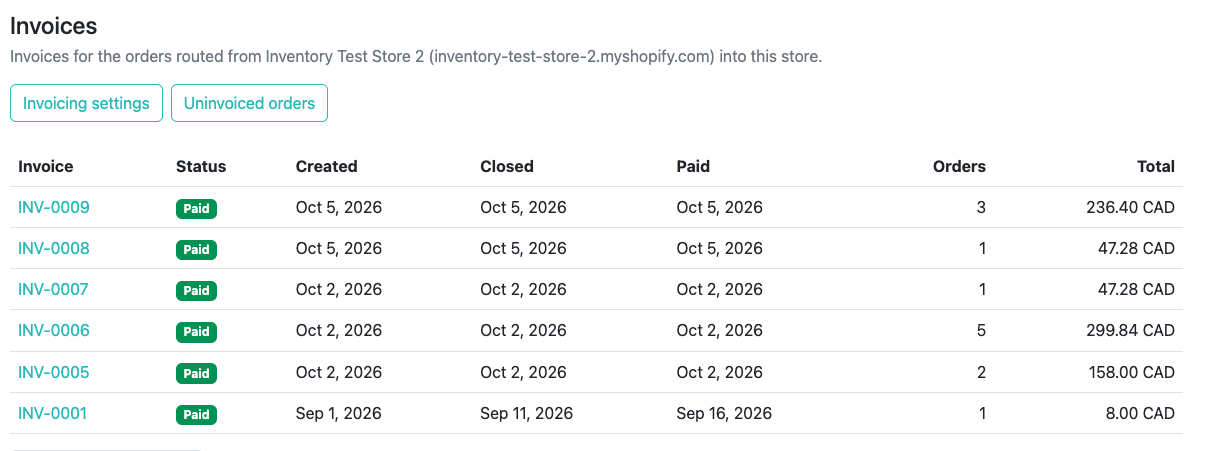
An invoice is Open while orders are added to it (one open invoice per currency), Closed once it’s billed, and Paid when payment is recorded. Amounts are taken from Shopify when the invoice closes.
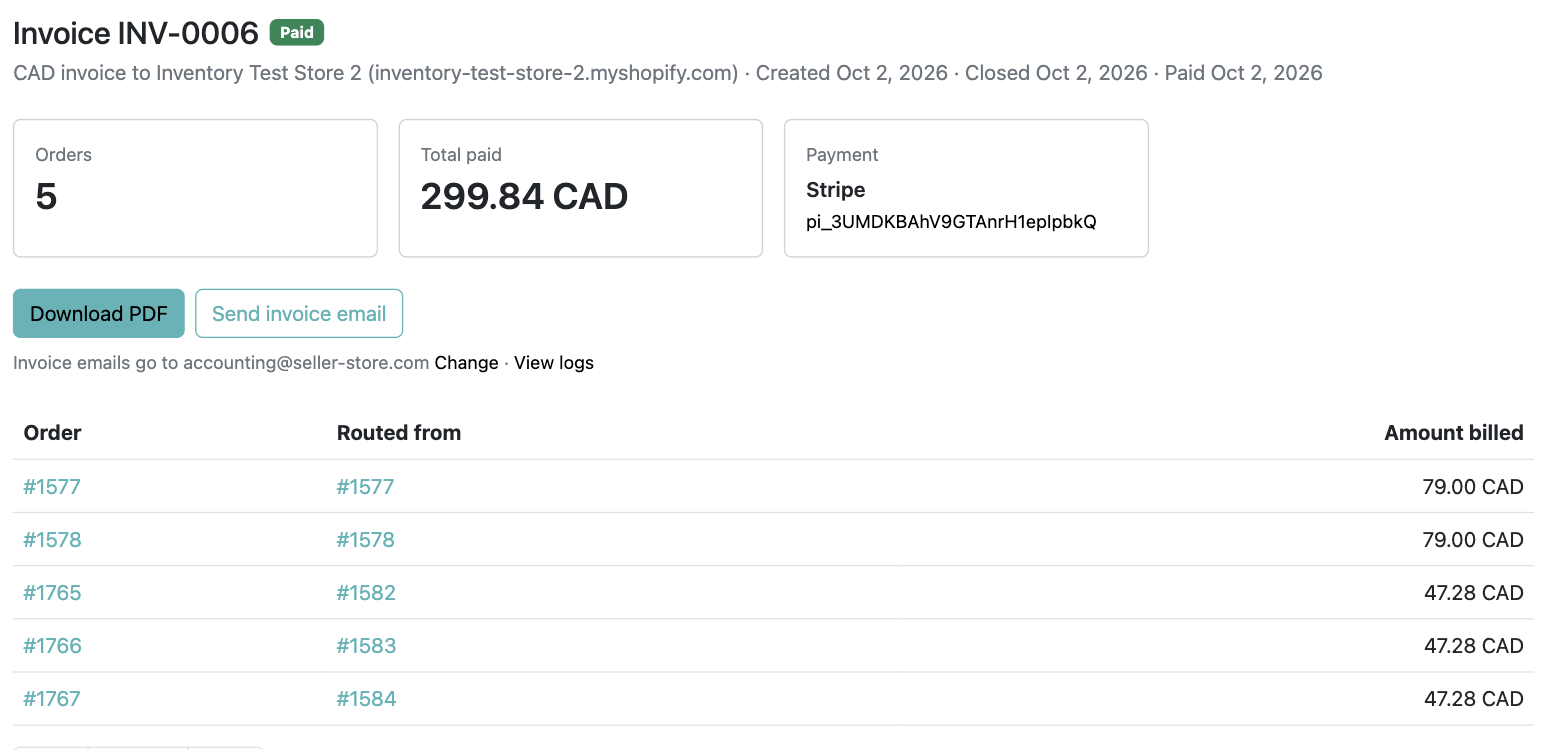
Open an invoice to download its PDF, email it, close it, mark it as paid, or retry a failed charge.
Adding earlier orders
Orders routed before invoicing was turned on, or from a deleted invoice, are listed under Uninvoiced orders. Search by order name or creation date, then add every matching order, or only the ones you select. They’re added to the open invoice for their currency.

Common Setups
Scheduled invoicing is a great way to track and accumulate the orders Synkro routes into your store. Each period’s orders are billed on one invoice, ready for a single bulk payment such as a wire transfer in dropshipping scenarios, or simply for your accounting records.
Charging requires Stripe to be connected (Settings > Order routing > Automatic Payment Capture) and a Stripe payment method saved on the routing setting (Edit settings > Payment Method).
Scheduled billing, charged automatically
The source store is billed once per period and charged without anyone lifting a finger.
- Close invoices: On a schedule (e.g. monthly)
- When an invoice closes: Charge the saved Stripe payment method, then Email the invoice
The invoice total is charged, and the source store receives the invoice marked as paid.
Scheduled billing, paid outside Synkro
For record keeping when the source store pays by bank transfer or another method.
- Close invoices: On a schedule (e.g. monthly)
- When an invoice closes: Email the invoice, then Mark the invoice as paid
The source store’s accounting team receives the invoice to pay, and it’s recorded as paid in Synkro. Email first, so the invoice they receive isn’t already marked as paid.
Invoice per order
Each routed order is billed and charged on its own, right away. Routing settings that already charged a saved Stripe payment method per order use this setup.
- Close invoices: After every order
- When an invoice closes: Charge the saved Stripe payment method
Good to Know
- Invoice emails go to the source store’s email address set on the routing setting, or the store’s default email.
- If a charge or email fails, the steps after it don’t run. Retry from the invoice page.
- Mark the invoice as paid is skipped when the payment method is also charged, since a successful charge marks the invoice as paid.
- A routing setting with invoices can’t be deleted. Disable it instead to stop routing orders; its invoices stay available.