

Master Inventory System
Sync inventory across multiple products that share a SKU or barcode using a designated master product — for made-to-order items and any store with shared-SKU products
Last updated May 28, 2026
Overview
The Master Inventory System in Synkro is designed to help merchants who sell made-to-order products stay in sync with a shared base inventory—typically a raw material or blank item.
This system ensures that any number of “derivative” products (such as printed variations) always reflect the same inventory level as a designated “master” product (the blank or base version). Whenever inventory changes happen—either through sales or manual updates—Synkro keeps everything synchronized automatically.
How It Works
1. Designate a Master Product
Choose the blank/base product that will act as your master and add the tag: synkro-inventory-master.
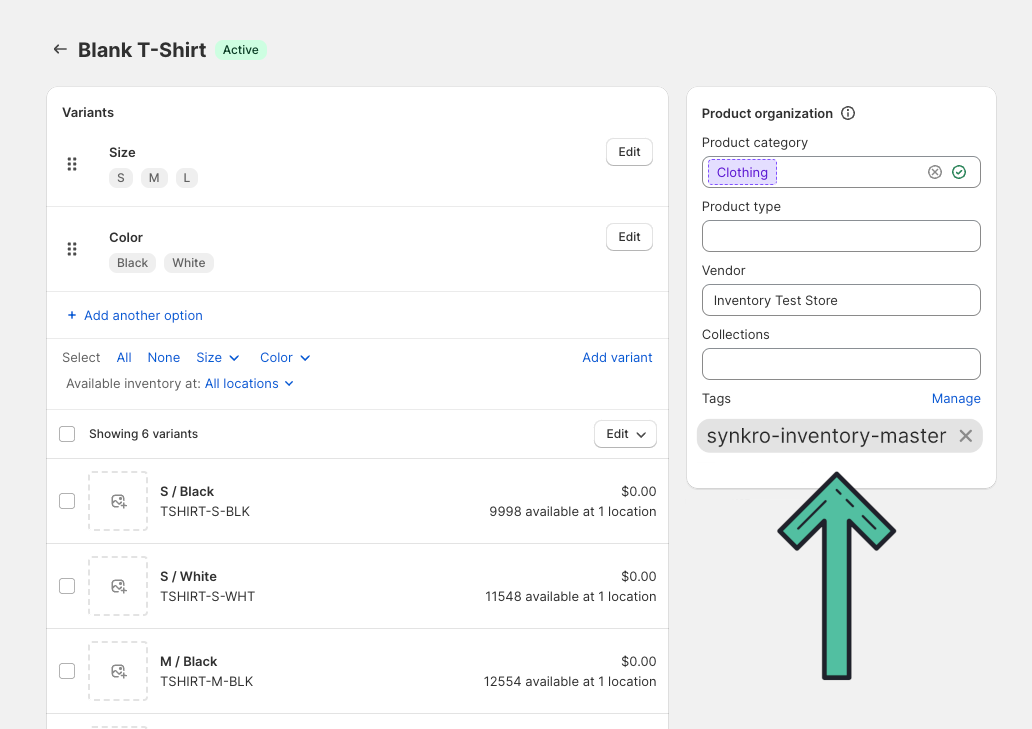 Add the tag
 synkro-inventory-master to the product which will serve as your master inventory product
2. Link Derivative Products
All derivative products (printed versions, made-to-order variants, etc.) must share the same SKU or the same barcode as the master. These products should not have the synkro-inventory-master tag.
Inventory Syncing Logic
- When a derivative product is sold, Synkro reduces the inventory of the master product by the same quantity.
- Synkro then syncs the new inventory level from the master to all other linked derivatives.
Example
Let’s say you sell printed t-shirts that are made from a common blank:
Product Setup
| Product | SKU | Tag | Inventory |
|---|---|---|---|
| Blank Grey T-Shirt | grey-md-tshirt | synkro-inventory-master | 3000 |
| Cat Print On Grey T-Shirt | grey-md-tshirt | 3000 | |
| Dog Print On Grey T-Shirt | grey-md-tshirt | 3000 | |
| Bird Print On Grey T-Shirt | grey-md-tshirt | 3000 |
Order Comes In:
- Dog Print x 3
- Cat Print x 2
Total: 5 units sold (from the same master SKU grey-md-tshirt)
Inventory After Order:
| Product | Inventory |
|---|---|
| Grey Medium Blank T-Shirt | 2995 |
| Cat Print On Grey T-Shirt | 2995 |
| Dog Print On Grey T-Shirt | 2995 |
| Bird Print On Grey T-Shirt | 2995 |
This update happens automatically within seconds of the order being placed.
Manual Inventory Updates
If you need to adjust the inventory (e.g. after receiving new blank stock), always update the master product. Synkro will sync the new value across all derivatives instantly. This inventory change to the master product can also be applied through other means, such as a purchase order or 3rd party application.
When to Use This
The Master Inventory System is ideal for:
- Made-to-order products (e.g. custom prints).
- Shared raw materials.
- Scenarios where you want inventory limits enforced across multiple variations of the same base item.
- Stores where multiple distinct products share a single SKU — even if you don’t sell made-to-order products. See Syncing multiple products with the same SKU below.
Syncing multiple products with the same SKU in the same store
You don’t have to sell made-to-order products to benefit from the Master Inventory System. Any store where several distinct products share a single SKU can run into a syncing gap that this system is built to close.
Your standard Synkro configuration already syncs inventory perfectly for everyday changes: whenever an inventory change occurs, Synkro syncs the new available inventory level for that item to every other item that shares the same SKU.
The one place this default behavior falls short is when two or more separate products with the same SKU are sold within the same order.
Where default syncing falls short
Imagine three products that all share the same SKU, each starting at 10 units:
| Product | SKU | Inventory |
|---|---|---|
| Cat Shirt | shared-sku | 10 |
| Dog Shirt | shared-sku | 10 |
| Bird Shirt | shared-sku | 10 |
- One item sold: the item’s inventory drops to 9, and Synkro syncs 9 to the others. ✅ Correct.
- Two separate items sold in the same order: each item is reduced to 9 independently, so the level Synkro syncs is 9 — even though two units were sold and the true remaining level should be 8. ❌
Because each product was decremented on its own, the default sync can only carry one of those reductions across the SKU group.
Master Inventory System solves it
Assign one product in the SKU group the synkro-inventory-master tag. Synkro then applies a −1 adjustment to the master product for every derivative item sold (a derivative is any product that shares the SKU but isn’t the master).
In the example above, when two items with the same SKU are sold in one order, Synkro performs a −1 adjustment on the master for each one — resulting in, and syncing, the correct final inventory level of 8 across the entire SKU group.
How to enable Master Inventory System
- Start by installing Synkro in your Shopify store and creating a Synkro account. (See Same store inventory syncing step 1 & 2.)
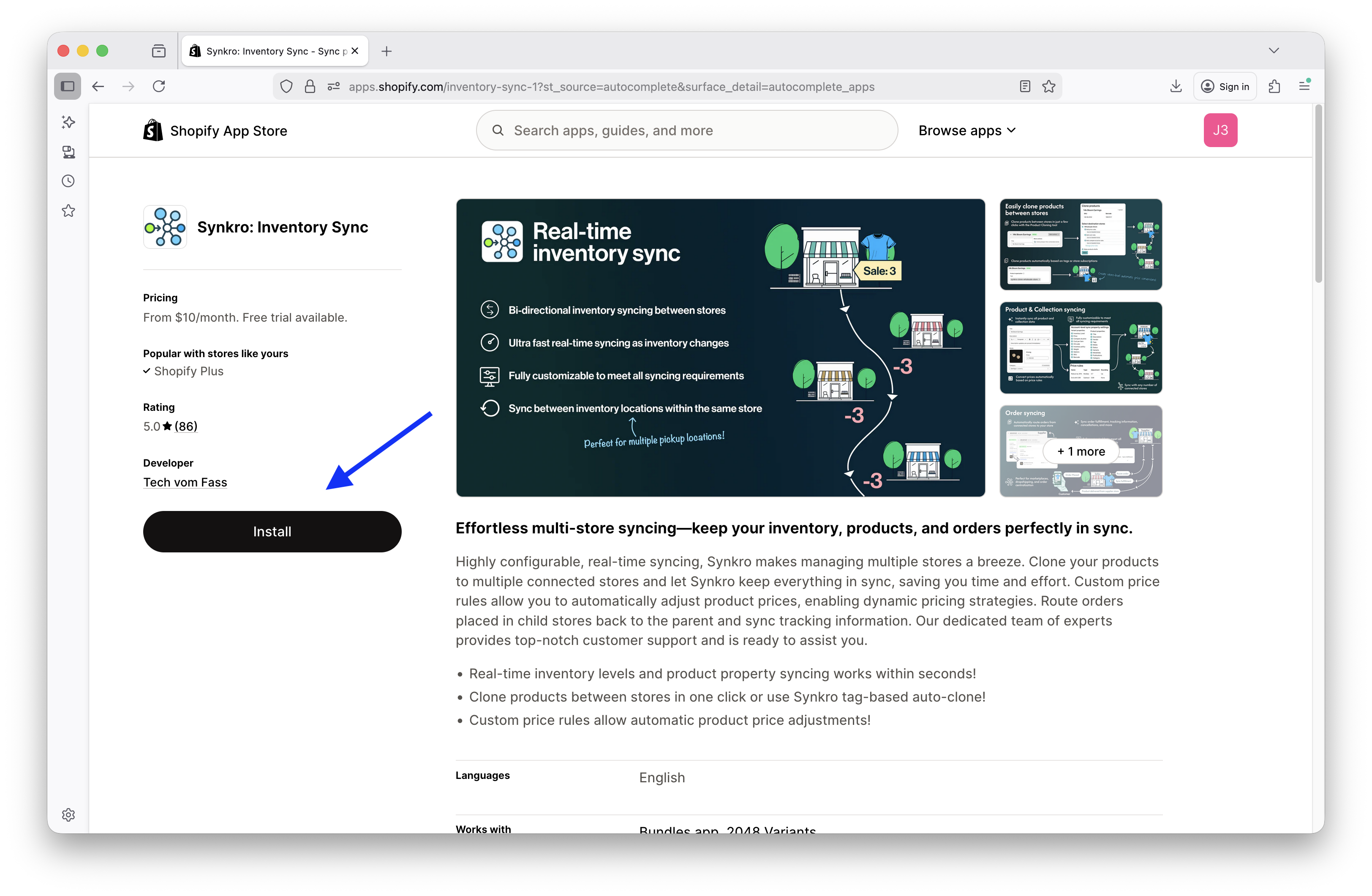 Find Synkro within the Shopify App Store and click
 Install
- Navigate into your Synkro settings to the
Master inventory locationtab, then clickCreate a master inventory location in my store
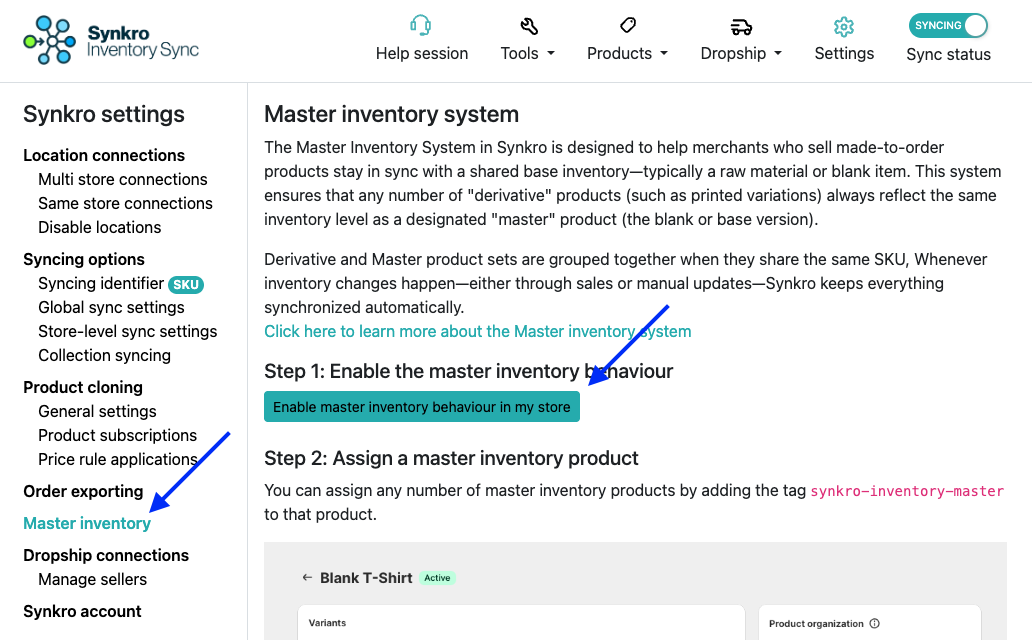 Click
Click Create a master inventory location in my store
Setup complete 🚀
Now that the setup has completed, try adding the synkro-inventory-master tag to your raw-material product. Next time you get an order for an item with the same SKU as a master product, that master product will be reduced and the resulting inventory will be propagated through all other derivative products which share the same SKU.
Use barcode for Master Inventory System
In some cases, using the SKU value to link master and derivative products may not be practical. Fortunately, Synkro’s Master Inventory System also supports Barcodes as an alternative identifier. To enable Barcode-based syncing, go to the Syncing Options section in your Synkro settings and select Barcode-based syncing.
Choosing when master inventory is restocked
By default, Synkro adds units back to your master inventory whenever an order is refunded with a restocking refund line item. If your store handles returns through Shopify’s Returns flow — where returned items are explicitly confirmed as restocked after the customer ships them back — you can switch Synkro to restock the master at that confirmation step instead.
You’ll find the setting on the Master inventory page in your Synkro settings, labelled Restock master inventory when:
| Option | When master inventory is restocked |
|---|---|
| An order is refunded (default) | The moment a refund is issued with a restocking refund line item. |
| A return is restocked (reverse fulfillment) | The moment a returned line item is disposed as restocked through Shopify’s Returns flow. |
When the reverse-fulfillment option is selected, Synkro stops restocking on refunds across all of your connected stores. This avoids restocking the same unit twice (once when you refund, again when the customer’s return is confirmed).
Permission requirement
Switching to A return is restocked (reverse fulfillment) requires the write_returns Shopify API scope on every connected store