
Dropship orders
See every order routed between your store and your dropship partners, and message the other store about any of them.
Last updated October 7, 2026
The Dropship orders page lists every order routed between your store and your dropship partners, whether you’re the seller or the supplier. Open an order to see its details and message the other store about it.
Viewing your dropship orders
- In Synkro, go to Dropship > Dropship orders.
- Orders are listed newest first. From shows the seller an order was routed from, and To shows the supplier it was routed to.
- Search by order name, source store or destination store, or click Show orders with new messages.
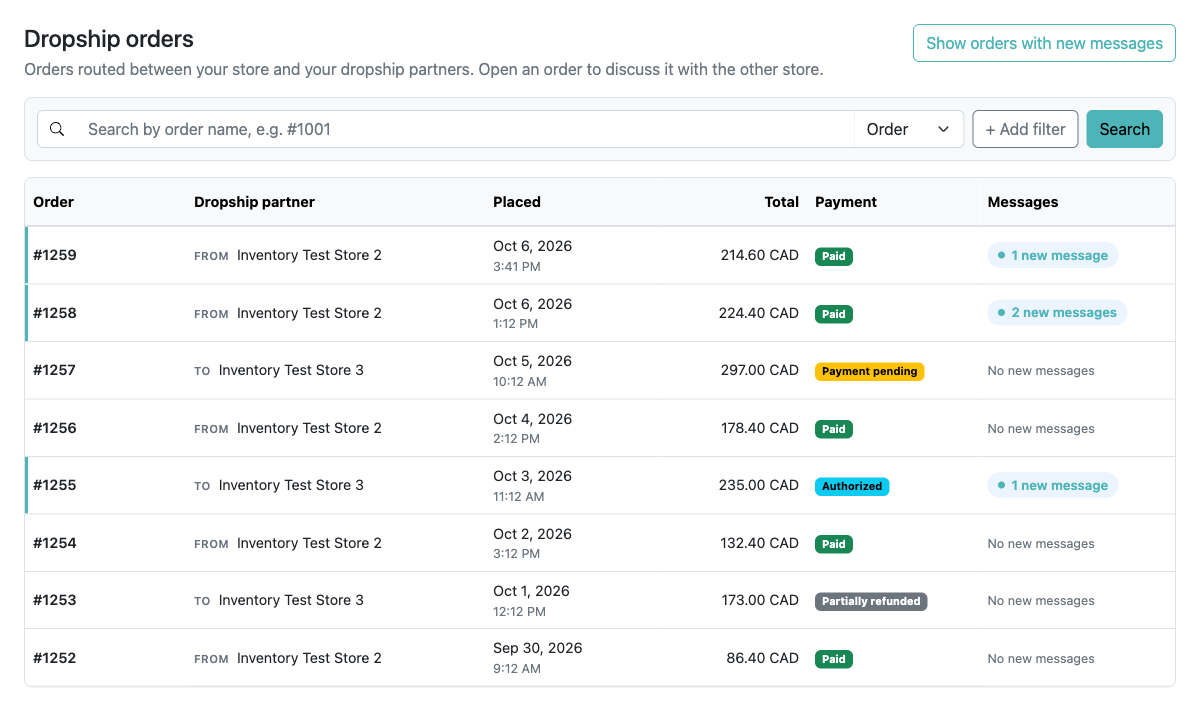
The Messages column updates as new messages arrive. Click a row to open the order.
Order details
The order page shows the order’s total, payment status and customer, along with the linked order in your partner’s store.
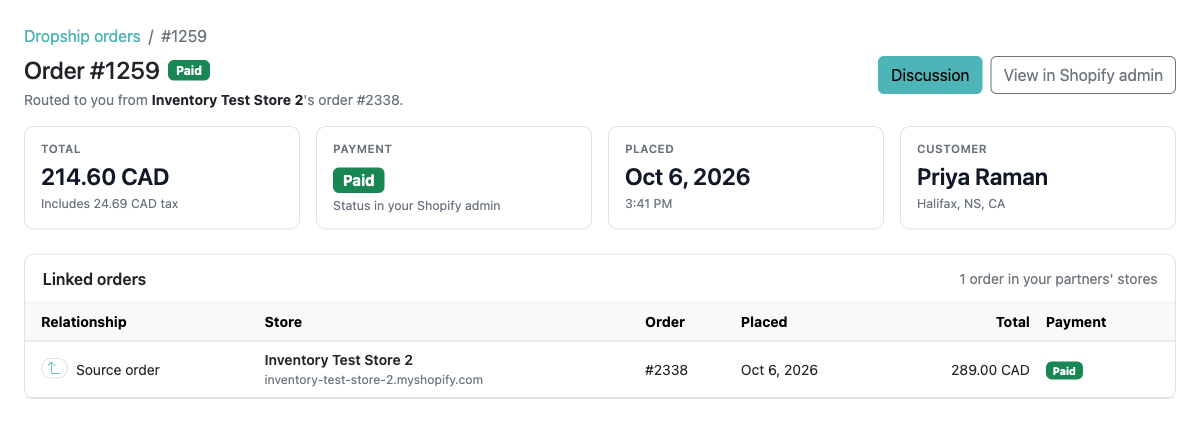
If the order is on an invoice, it’s shown under Payment. Suppliers can open the invoice, and sellers can download it as a PDF. See Order Routing Invoicing.
Discussion
Below the order details, message the other store about the order. New messages appear right away, and the other store is notified by email. They can reply straight from that email.
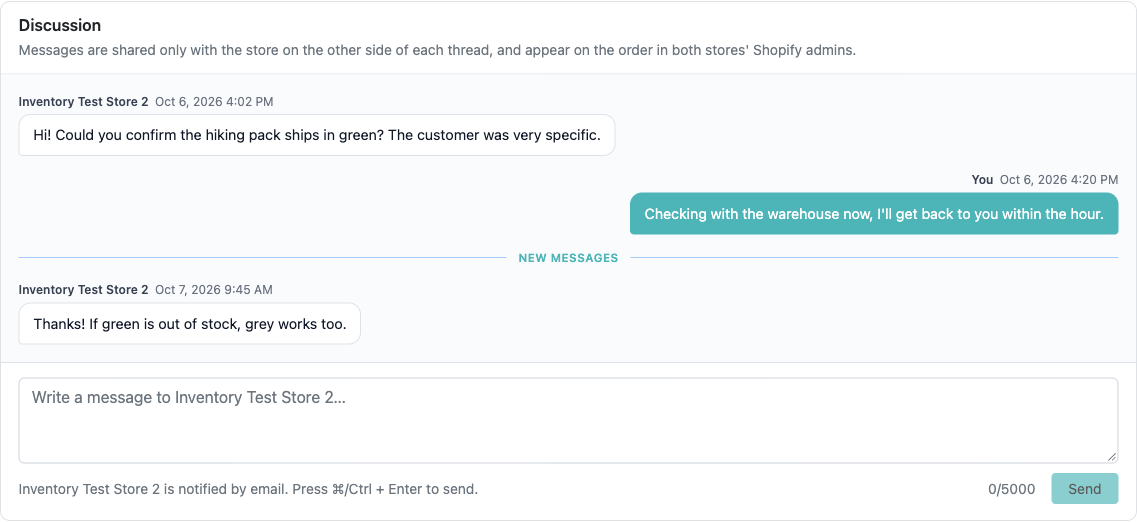
The same discussion is also available on the order in the Shopify admin. See Order Discussions.