

Forcing a sync
Push a product's details, images, inventory, prices, costs, SKUs, or barcodes to your connected stores on demand, even if Synkro thinks they are already in sync.
Last updated October 13, 2026
Synkro syncs changes automatically. Force a sync when a connected store has drifted out of sync and you want to push the current values again.
Force sync a product
- Open the product in your Shopify admin.
- Click
More actions > Force sync to connected stores. - Select what to sync:
- Product: Title, Description, Vendor, Product type, Tags, Status, and/or Images.
- Variants: Inventory, Price, Compare at price, Cost, Tracked, SKU, and/or Barcode.
- Choose a destination: All connected stores, or Choose stores to pick specific ones.
- Click
Start force sync.
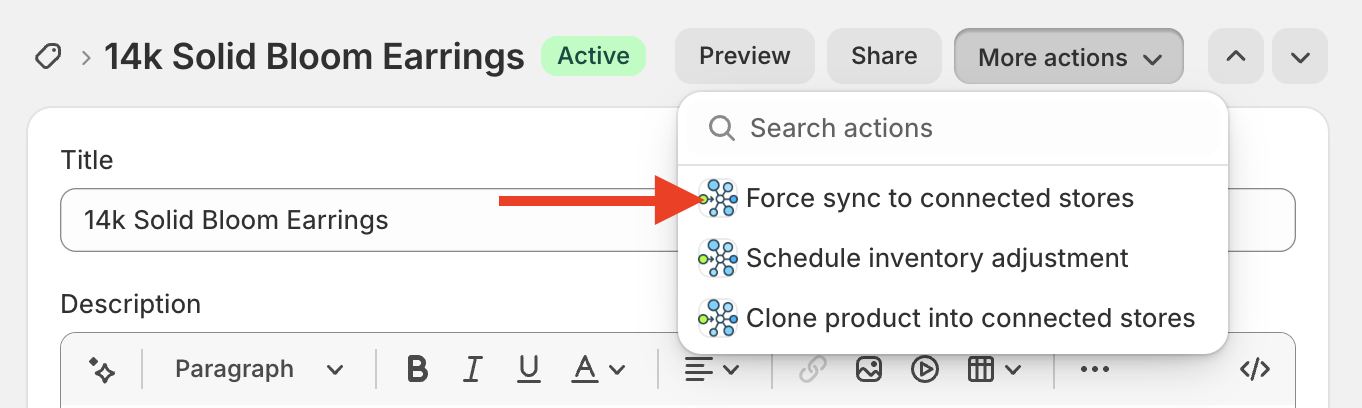 More actions > Force sync to connected stores
You can also click Force sync on the product’s page in Synkro.
Good to know
- Inventory is synced for every variant at every active location, to variants with the same SKU or barcode.
- Everything other than Inventory only syncs to child products of this product.
- Each store’s syncable product properties still apply.
Force syncing inventory levels in bulk
- Navigate to your products list within your Shopify admin.
- Select the products for which you’d like to force a sync.
- Click
… More actions, then selectPerform bulk action on selected products. - Under Force sync, click
Start bulk inventory sync.
This will initiate a force inventory sync operation for the selected products.
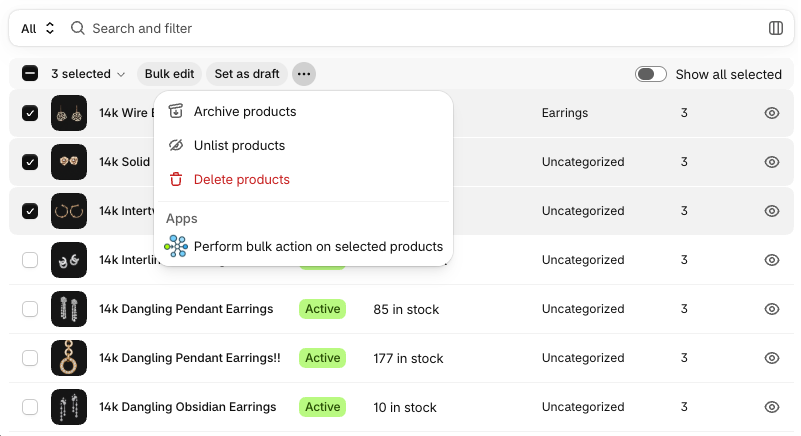 Select the products, then click
 More actions > Perform bulk action on selected products
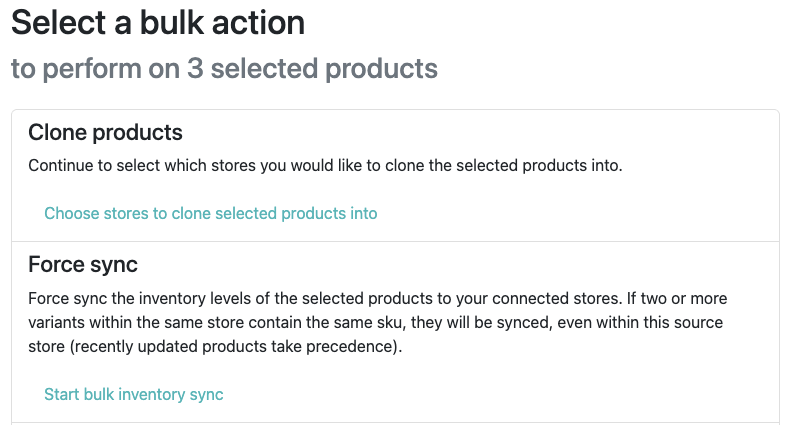 Click
Click Start bulk inventory sync under Force sync
Force price sync with Shopify Flow
Synkro adds a Force price sync action to Shopify Flow. Add it to any workflow that has a product, and Synkro will push that product’s prices to its child products in every connected store, re-applying any attached price rules.